The PlayStation 5 DualSense controller is one of the most advanced gaming controllers ever created, offering immersive haptic feedback, adaptive triggers, and a sleek ergonomic design. While it’s designed primarily for the PS5 console, many gamers prefer using it on their PC for a more comfortable and responsive gaming experience. Whether playing on Steam, Epic Games Store, or other platforms, learning how to connect a PS5 controller to a PC can significantly enhance gameplay. This guide provides a detailed explanation of all the methods available, including both wired and wireless connections, along with troubleshooting tips and compatibility insights to ensure a seamless setup.
Why Use a PS5 Controller on PC
Before diving into the connection process, it’s important to understand why so many gamers choose to use the PS5 controller on PC. The DualSense controller offers superior comfort, precision, and advanced features that most standard PC controllers lack. Its adaptive triggers provide variable resistance for different in-game actions, while the haptic feedback system delivers realistic vibrations that mimic the feel of various surfaces and impacts. Additionally, the controller’s built-in microphone, touchpad, and motion sensors make it versatile for a wide range of games. By connecting the PS5 controller to a PC, players can enjoy console-quality control with the flexibility of PC gaming.
Methods to Connect PS5 Controller to PC
There are two main ways to connect a PS5 controller to a PC — via a USB cable or through Bluetooth. Both methods are simple, but each has its own advantages depending on the setup and preferences.
1. How to Connect PS5 Controller to PC Using a USB Cable
The easiest and most reliable way to connect a PS5 controller to a PC is through a USB-C cable. This method ensures a stable connection with no input lag, making it ideal for competitive or fast-paced games.
Steps:
- Plug one end of the USB-C cable into the PS5 controller.
- Connect the other end to a USB port on the PC.
- Windows will automatically detect the controller and install the necessary drivers.
- Once installed, the controller will be ready to use in most games and platforms, including Steam.
Using a wired connection also keeps the controller charged while playing, eliminating the need to worry about battery life.
2. How to Connect PS5 Controller to PC via Bluetooth
For those who prefer a wireless setup, connecting the PS5 controller to a PC via Bluetooth offers freedom of movement and convenience. However, it’s important to ensure that the PC has built-in Bluetooth or a compatible Bluetooth adapter.
Steps:
- On the PC, open the Bluetooth settings by navigating to “Settings” → “Devices” → “Bluetooth & other devices.”
- Turn on Bluetooth if it’s not already enabled.
- On the PS5 controller, press and hold the PS button and the Create button (located next to the D-pad) simultaneously until the light bar starts flashing.
- On the PC, click “Add Bluetooth or other device” and select “Bluetooth.”
- Choose “Wireless Controller” from the list of available devices.
- Once paired, the light bar will turn solid, indicating a successful connection.
While Bluetooth provides convenience, it may introduce slight input lag compared to a wired connection. For casual gaming, however, the difference is minimal and often unnoticeable.
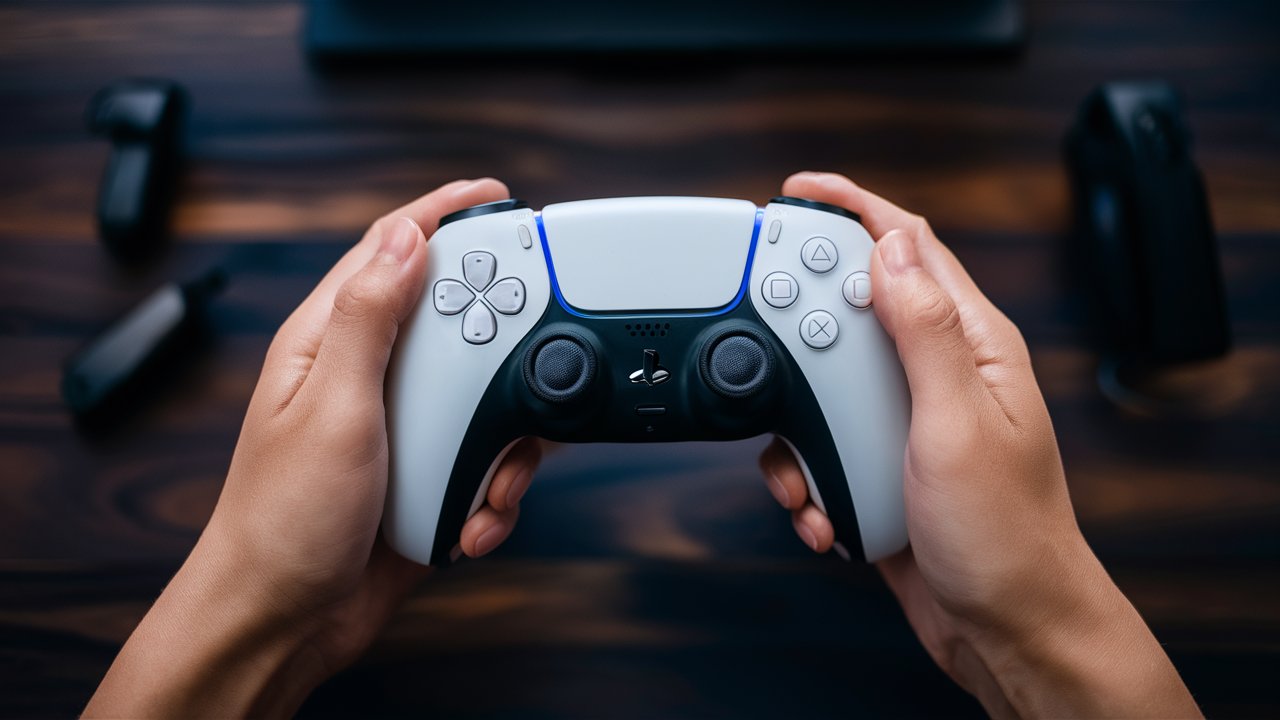
How to Use PS5 Controller on Steam
Steam has built-in support for the PS5 DualSense controller, making it one of the easiest platforms to use. Once connected, Steam automatically detects the controller and allows customization of button layouts, sensitivity, and vibration settings.
Steps to Configure:
- Open Steam and go to “Settings.”
- Select “Controller” and then “General Controller Settings.”
- Check the box for “PlayStation Configuration Support.”
- The PS5 controller will appear as “PlayStation 5 Controller.”
- Customize the layout, triggers, and haptic feedback according to preference.
Steam’s compatibility ensures that most games recognize the controller instantly, providing a smooth and intuitive experience.
How to Use PS5 Controller on Non-Steam Games
For games outside of Steam, connecting a PS5 controller to a PC may require additional configuration. Some titles automatically detect the controller, while others may need third-party software like DS4Windows or InputMapper to emulate Xbox controller input. These tools allow the DualSense controller to function seamlessly across various platforms, ensuring compatibility with older or non-native games.
Troubleshooting Common Connection Issues
Sometimes, users may encounter issues when trying to connect a PS5 controller to a PC. Common problems include the controller not being recognized, Bluetooth pairing failures, or input lag.
Solutions:
- Ensure Windows is updated to the latest version.
- Re-pair the controller by removing it from the Bluetooth device list and reconnecting.
- Use a different USB cable or port if the wired connection fails.
- Restart both the PC and controller before attempting to reconnect.
- For Bluetooth issues, keep the controller within a short range of the PC to maintain a stable signal.
Advantages of Using PS5 Controller on PC
Using a PS5 controller on PC offers several advantages beyond comfort and design. The DualSense controller’s adaptive triggers and haptic feedback enhance immersion, especially in games that support these features. Its rechargeable battery, built-in microphone, and motion sensors add versatility for different gaming genres. Additionally, the controller’s compatibility with both wired and wireless connections makes it suitable for various setups, from desktop gaming to portable laptops.
Conclusion
Learning how to connect a PS5 controller to a PC opens up a world of gaming possibilities. Whether through a wired USB connection for maximum stability or Bluetooth for wireless convenience, the process is straightforward and accessible to all gamers. The DualSense controller’s advanced features bring console-quality precision and immersion to PC gaming, making it one of the best controllers available today. With proper setup and configuration, players can enjoy smooth gameplay across multiple platforms, combining the best of both console and PC worlds.
Frequently Asked Questions (FAQ)
1. Can I use a PS5 controller on any PC game?
Yes, most modern PC games support the PS5 controller, especially through Steam. For non-Steam games, third-party software may be required for full compatibility.
2. Does the PS5 controller work better wired or wireless?
A wired connection provides the most stable performance with no input lag, while Bluetooth offers convenience and portability. Both methods work well depending on preference.
3. How do I know if my PC supports Bluetooth for the PS5 controller?
Check your PC’s device manager or settings. If Bluetooth is listed, your PC supports it. If not, a USB Bluetooth adapter can be used.
4. Can I use the PS5 controller’s adaptive triggers on PC?
Some PC games and platforms like Steam support adaptive triggers and haptic feedback, but not all titles utilize these features yet.
5. Why isn’t my PS5 controller connecting to my PC?
Ensure the controller is in pairing mode, Bluetooth is enabled, and drivers are updated. If issues persist, try restarting both devices or using a wired connection.
