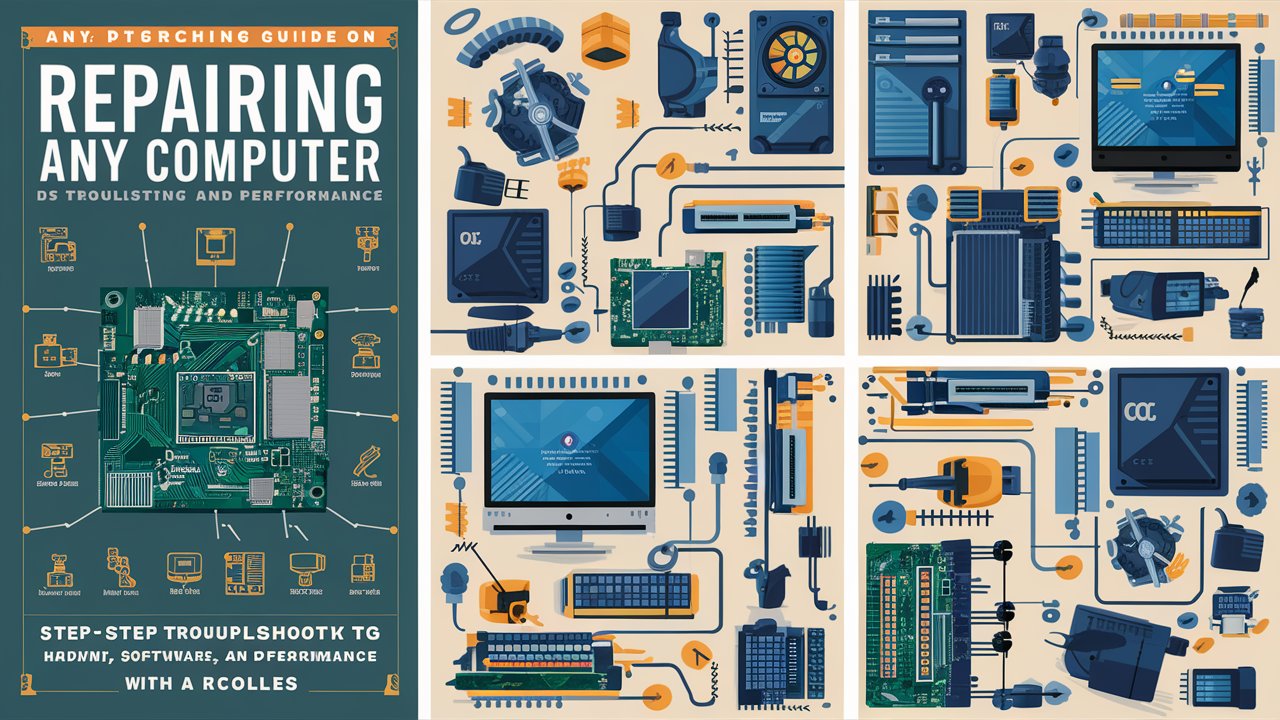
Computers have become an essential part of daily life, powering everything from business operations to personal entertainment. However, like any machine, they can develop issues over time—ranging from slow performance and software crashes to hardware malfunctions. Learning how to repair any computer not only saves money but also builds valuable technical skills. This comprehensive guide covers everything needed to diagnose, troubleshoot, and repair any computer problems efficiently. Whether dealing with a desktop or laptop, Windows or macOS, the following steps and insights will help restore any computer to optimal performance.
Understanding Computer Repair
Computer repair involves identifying and resolving issues that affect a system’s performance, stability, or functionality. These problems can stem from hardware repair any computer such as the motherboard, RAM, or hard drive, or from software issues like corrupted files, malware infections, or outdated drivers. The process of repairing any computer requires a systematic approach—starting with diagnosis, followed by targeted troubleshooting, and finally implementing the right fix. A clear understanding of how each component interacts within the system is crucial for effective repair.
Common Computer Problems and Their Causes
Computers can experience a wide range of issues, but most fall into a few common categories. Slow performance is often caused by insufficient memory, too many background programs, or malware infections. Startup failures may result from corrupted system files or faulty hardware components. Overheating can occur due to dust buildup, poor ventilation, or a failing cooling fan. Display issues might stem from a damaged graphics card or loose cable connections. Understanding these root causes helps in applying the correct repair techniques and prevents unnecessary part replacements.
Step-by-Step Guide to Repair Any Computer
1. Diagnose the Problem
The first step in repair any computer is accurate diagnosis. Begin by observing the symptoms—such as unusual noises, error messages, or system crashes. Use built-in diagnostic tools like Windows Memory Diagnostic or Apple Diagnostics to identify hardware issues. For software-related problems, check the Task Manager or Activity Monitor to see which programs are consuming excessive resources. Accurate diagnosis ensures that time and effort are focused on the real issue rather than guesswork.
2. Perform Basic Troubleshooting
Once the problem is identified, start with basic troubleshooting steps. Restart the computer to clear temporary glitches. Check all cable connections, power sources, and peripheral devices. Run antivirus scans to remove malware or viruses that may be slowing down the system. Update the operating system and drivers to ensure compatibility and stability. These simple actions often resolve many common computer issues without requiring advanced repairs.
3. Repair Software Issues
Software problems are among the most frequent causes of computer malfunctions. If the system is running slowly, uninstall unnecessary programs and disable startup applications. Use built-in tools like Disk Cleanup and Defragmenter to optimize storage performance. For corrupted files, run the System File Checker (SFC) or reinstall the affected software. In severe cases, performing a system restore or reinstalling the operating system may be necessary to repair any computer suffering from persistent software errors.
4. Fix Hardware Problems
Hardware repairs require careful handling and the right tools. Begin by inspecting internal components for visible damage or loose connections. Replace faulty RAM modules, hard drives, or power supplies as needed. Clean dust from fans and vents to prevent overheating. When dealing with laptops, ensure that the battery and charging port are functioning correctly. Always ground yourself before touching internal parts to avoid static damage. Proper hardware maintenance extends the lifespan of any computer and ensures consistent performance.
5. Prevent Future Issues
Preventive maintenance is key to keeping a computer running smoothly. Regularly update software, perform virus scans, and back up important data. Keep the system physically clean and ensure adequate ventilation. Avoid downloading files from untrusted sources and use strong passwords to protect against cyber threats. By following these preventive measures, it becomes easier to maintain a healthy system and reduce the need for frequent repairs.
Advanced Tips for Computer Repair
For those looking to deepen their technical expertise, learning about BIOS settings, partition management, and data recovery can be highly beneficial. Understanding how to use command-line tools, manage system registries, and replace advanced components like GPUs or motherboards can transform basic troubleshooting skills into professional-level repair capabilities. Investing time in learning these advanced techniques ensures the ability to repair any computer efficiently and confidently.
Conclusion
Repairing any computer may seem challenging at first, but with the right knowledge and approach, it becomes a manageable and rewarding process. From diagnosing issues to performing both software and hardware repairs, each step contributes to restoring a system’s performance and reliability. Regular maintenance and preventive care further ensure that computers remain in excellent condition for years to come. Mastering these skills not only saves money but also empowers users to handle technical challenges independently.
Frequently Asked Questions (FAQ)
1. What tools are needed to repair a computer?
Essential tools include screwdrivers, an anti-static wrist strap, thermal paste, compressed air, and diagnostic software. These tools help safely open, clean, and test computer components.
2. How can slow computer performance be improved?
Improving performance involves uninstalling unnecessary programs, upgrading RAM, cleaning temporary files, and ensuring the system is free from malware or viruses.
3. Is it safe to open a computer case?
Yes, as long as the computer is unplugged and proper precautions are taken to prevent static discharge. Always handle components carefully and avoid touching circuitry directly.
4. When should professional help be sought?
Professional assistance is recommended when dealing with complex hardware issues such as motherboard failures, data recovery, or power supply replacements.
5. How often should a computer be serviced?
A computer should be cleaned and checked at least once every six months to ensure optimal performance and prevent dust buildup or overheating issues.
